


Fusion Mode overlay
Answers fade into the call — easy for you to read while you talk.
When you only have one computerLive answers in interviews, one-key solutions for online tests, and follow-ups that stay on track. Stay composed, land the offer.
Works with the apps your interviews already use
F1 for answers, F4 for coding questions, F5 for online tests. Share your screen and they won't see it.
Plus: Fusion Mode · Knowledge base · Mock interview
By default, the app and its answers stay out of your screen shares.
Use one on its own, or both together.
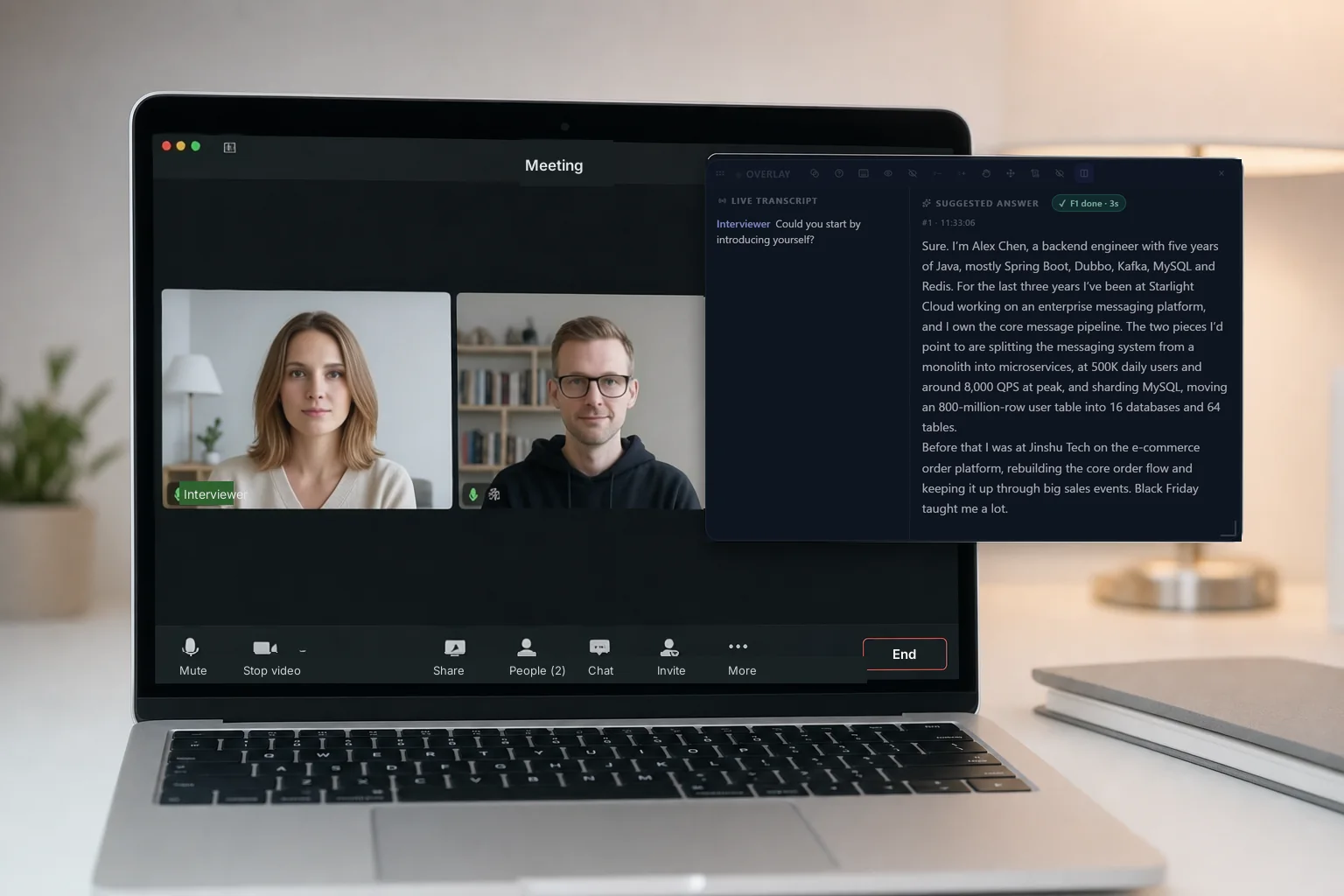
Read while you listen. Position, opacity and text size are adjustable.
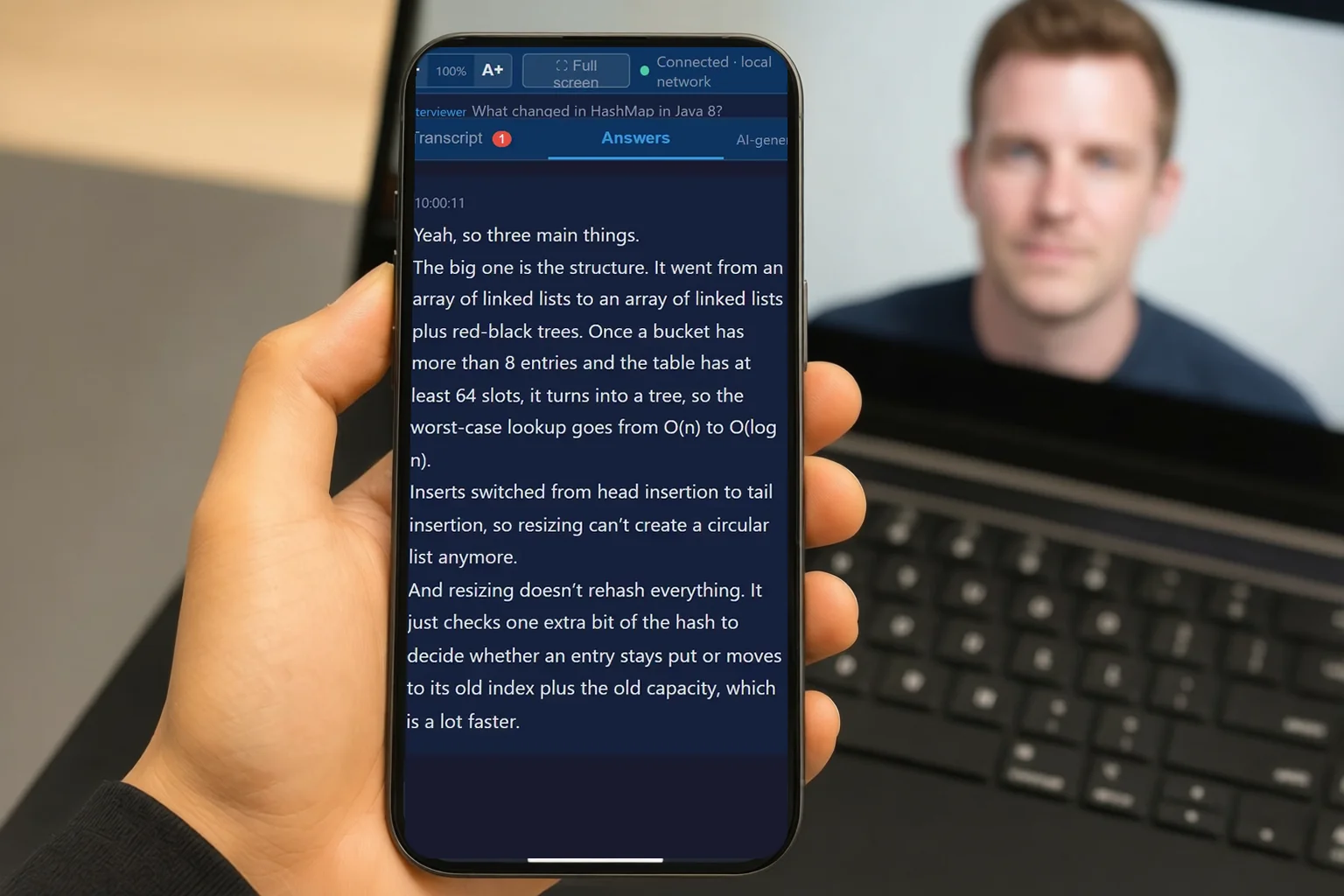
Scan and the answer page mirrors on your phone, right in the browser.
Ask CalmRound and the one you're considering the same question, and see which speaks first and which sounds like you. 20 free credits when you sign up, and a refund on your first pack if it isn't for you.
CalmRound reads your resume, the job post and your project notes first, then answers from your experience.
I'd pick the project I was most involved in: set up the context and goal, explain my part, then cover the outcome and what I learned.
It answers — but in generic terms, not your workThe hardest one was migrating our orders table from a single MySQL instance to a sharded setup… Order query p99 dropped from 480 milliseconds to 70 milliseconds.
Your company, your project, your numbersRight: an answer CalmRound actually generated with the persona's materials. Left: the generic approach without them. Shortened.
Press F4 for on-screen problems. Read out loud works too.

The coding problem on the left; CalmRound's overlay on the right. Press F4 for the approach and code.
4 question types · tap to see one
Alt+SLong question? Take several screenshots, get one answer


Practice like the real thing, then see what to work on.

Two options: blend the answer into the call, or keep it on a second screen.
Two optionsPick by the device you have
Answers fade into the call — easy for you to read while you talk.
When you only have one computerNothing on the computer. Read answers on your phone or tablet.
When you have a phone or tabletBefore the real interview, check once with the actual second camera.
All three work together: transcribe as they speak, learn your role's terms from your resume, then use context to fix misheard words.
Answers come back in the language the interviewer speaks—no switching mid-call.
Set the interview language in Settings once; technical terms stay as spoken. Language settings →
A light gaze correction, so you look like you're facing the camera.


From prep to online tests, ready to use.
Latest flagship model, using your resume.
Privacy, how it works, pricing and refunds.
Out of the share by default. The main window, overlay and answers stay out of screen sharing, recordings and system screenshots, with nothing to switch on. Windows also enables mouse anti-focus-loss automatically when the overlay opens.
Asked to install proctoring software? Read answers on your phone instead.
Sharing your entire screen on Mac? If the other side still sees CalmRound, turn on Secure share screen in Settings → General (off by default), then pick the extra screen when sharing. How to use Secure share screen →
Always run a test call with your real setup before the interview. See the full setup and status guide →
Answers use your resume, projects and the job description, in a natural speaking style rather than a template. Skim the key points and say them in your own words; reading word for word tends to sound less natural.
Yes—9 languages. CalmRound recognises and answers in English, Japanese, Chinese, Korean, German, French, Spanish, Italian and Russian. Choose the interview language in Settings and answers come back in that language.
Technical terms stay as they were spoken, and you can switch the language before a different interview starts. See the language settings →
Your resume, the job description, project notes (PDF / Word / TXT / MD) and any fixed answers, such as your self-introduction. AI organizes them into Q&A pairs that you confirm one by one. Interviewing for several roles? Keep a separate set for each. After importing, run a quick self-test with one real question.
Yes. After a screenshot you get the approach, complete code, the complexity and the edge cases. It also writes the code when the interviewer only reads the problem out loud. When they ask about your approach or complexity afterwards, press F1 and it answers from that same code. If they change the requirements, it builds on the previous version.
Place the answer window near your camera to reduce how far you look down. If your account qualifies, you get an eye-contact correction tool that gently nudges your gaze toward the camera; it needs a separate install and test first.
There is an Android app, and any phone can show the answers. CalmRound runs on Windows and Mac and does the listening and answering. The Android app is for meetings that run on the phone itself: it keeps the answers floating over the meeting app, but a computer is still required. There is no iPhone app because iPhone doesn't let apps float a window over other apps.
Reading answers takes one scan: on the computer, expand View answers on phone and scan the code with your phone's camera. Answers appear live in the browser. No install, no sign-in, no shared Wi-Fi needed. See the guide.
New accounts get 20 free credits; 1 credit covers 1 minute of live interview. After that you buy credit packs once and use them whenever you like; nothing renews automatically. See pricing.
You can request a refund for your first credit pack within 7 days if you've used 30 credits or less. See the refund policy for the amount and conditions.
Your audio is sent to our speech-recognition provider to turn it into text and is not stored on our servers. See our Privacy Policy for the full details.
Email [email protected]. We reply within 3 business days, usually much sooner.
New accounts get 20 free credits. No card, no subscription.