Keep answers off the second camera behind you
A second camera sits behind you and films both you and your computer screen. Two ways to keep the answers out of its recording — pick one, then check it with a 10-second replay.
- Option A · one computer
Answers stay on the screen, faint enough that the camera can't read them.
- Option B · answers on your phone
The phone sits beside or behind the computer, out of the camera's view.
- Either way, film 10 seconds
The replay is the only test that counts.
A second camera films you and your screen
The interviewer puts a phone behind you, filming your back and the computer screen. Screen-sharing stealth doesn't help: this is a real lens pointed at a real monitor. So there is only one job — keep the answer text out of that recording.
- Set the camera where the interviewer asks. Usually 45° behind you or straight behind, showing your back, hands and desk. Don't move it to hide answers.
- Answers have two places to go. On the computer screen but too faint to read, or on your phone where the camera can't see it.
- The replay is the judge. A 10-second recording is the only proof; the live preview doesn't count.
Option A · fusion overlay: readable to you, unreadable to the camera
The answers stay on your screen, tuned to the point where you can read them and the camera behind you can't.
- In Settings → General → Overlay, set the visual mode to Fusion Mode. Then press Ctrl+Shift+Space to open the overlay.
- In Settings → General → Overlay, lower Fusion Mode text opacity from 88%, 5% at a time. Record a replay after each step until the text is unreadable.
- Keep the window narrow and at the screen edge. Read one full answer yourself to check you can still read it.
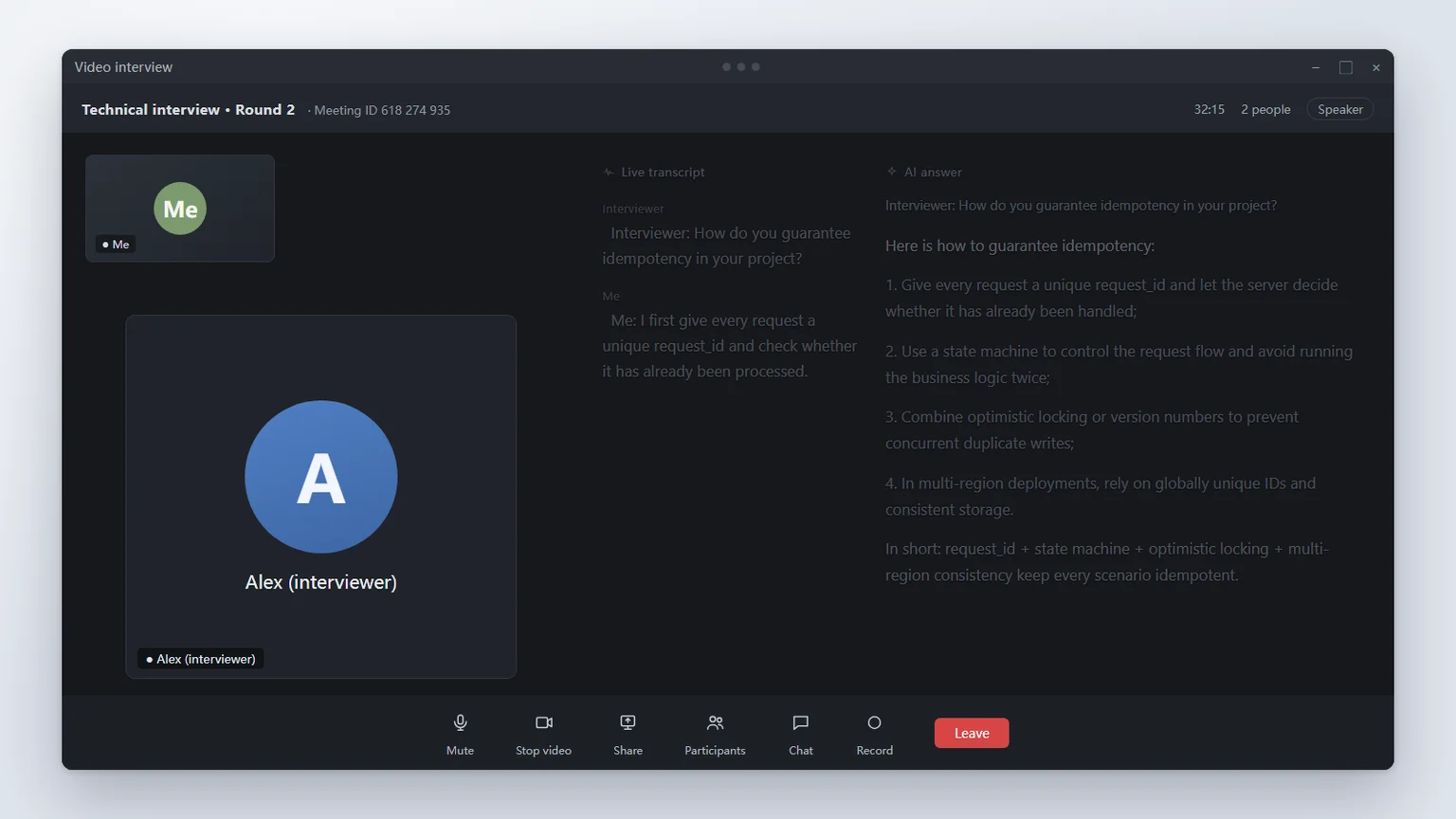
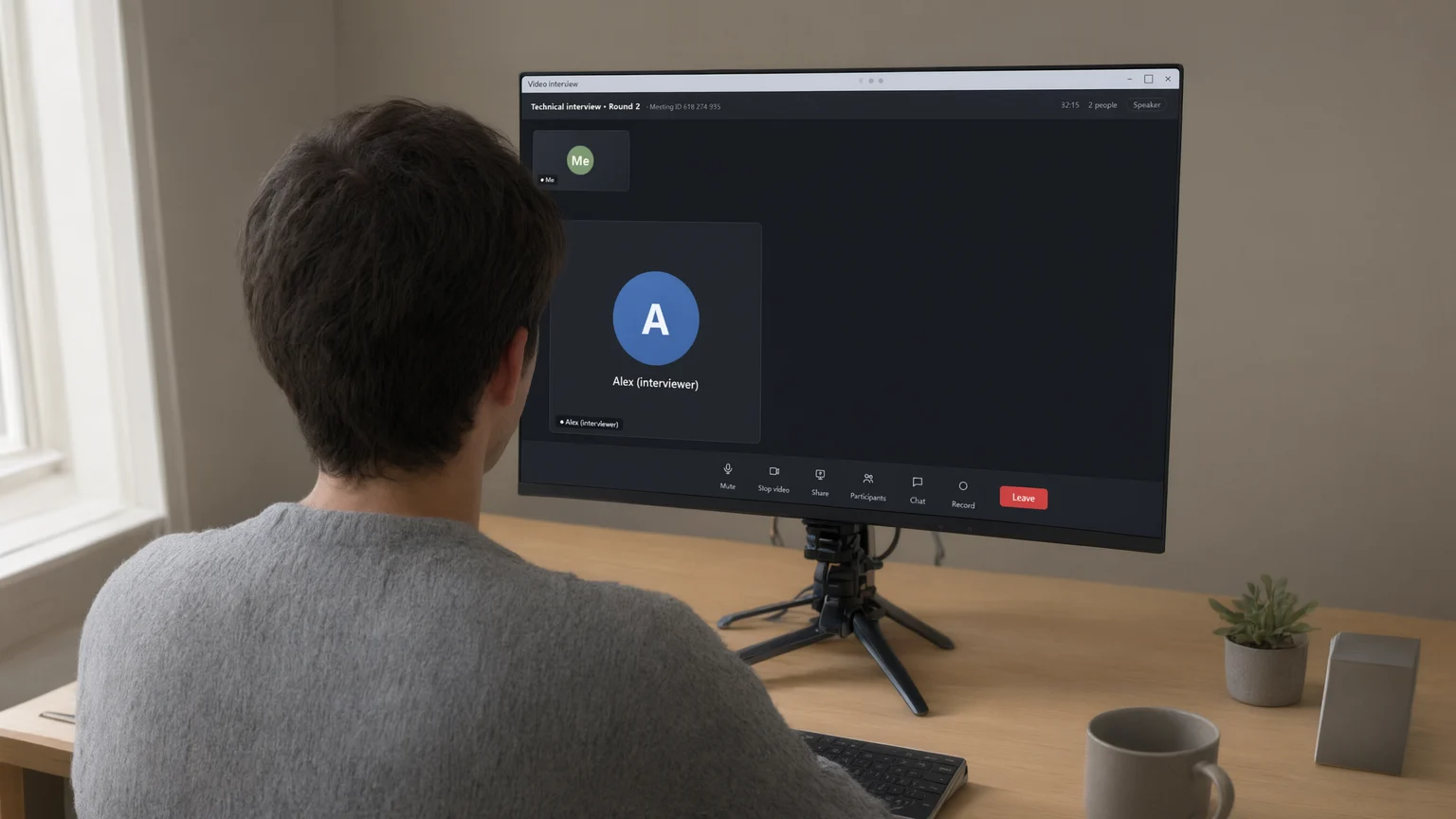
10% is the floor. If the replay is still readable at 10%, switch to Option B.
Option B · answers on your phone, out of the camera's view
The computer shows only the interview. The answers are on your phone, placed beside or behind the computer where the camera can't film that screen.
- On the main screen, expand View answers on phone and scan the code. The computer shows Phone connected.
- Put the phone beside or behind the monitor — at the side, behind the screen, or on the desk corner — with the screen toward you. Check the second camera's preview: the phone screen must not be visible.
- Press Ctrl+~ to hide the computer overlay. During the interview, Alt+1 / Alt+2 scroll the phone.
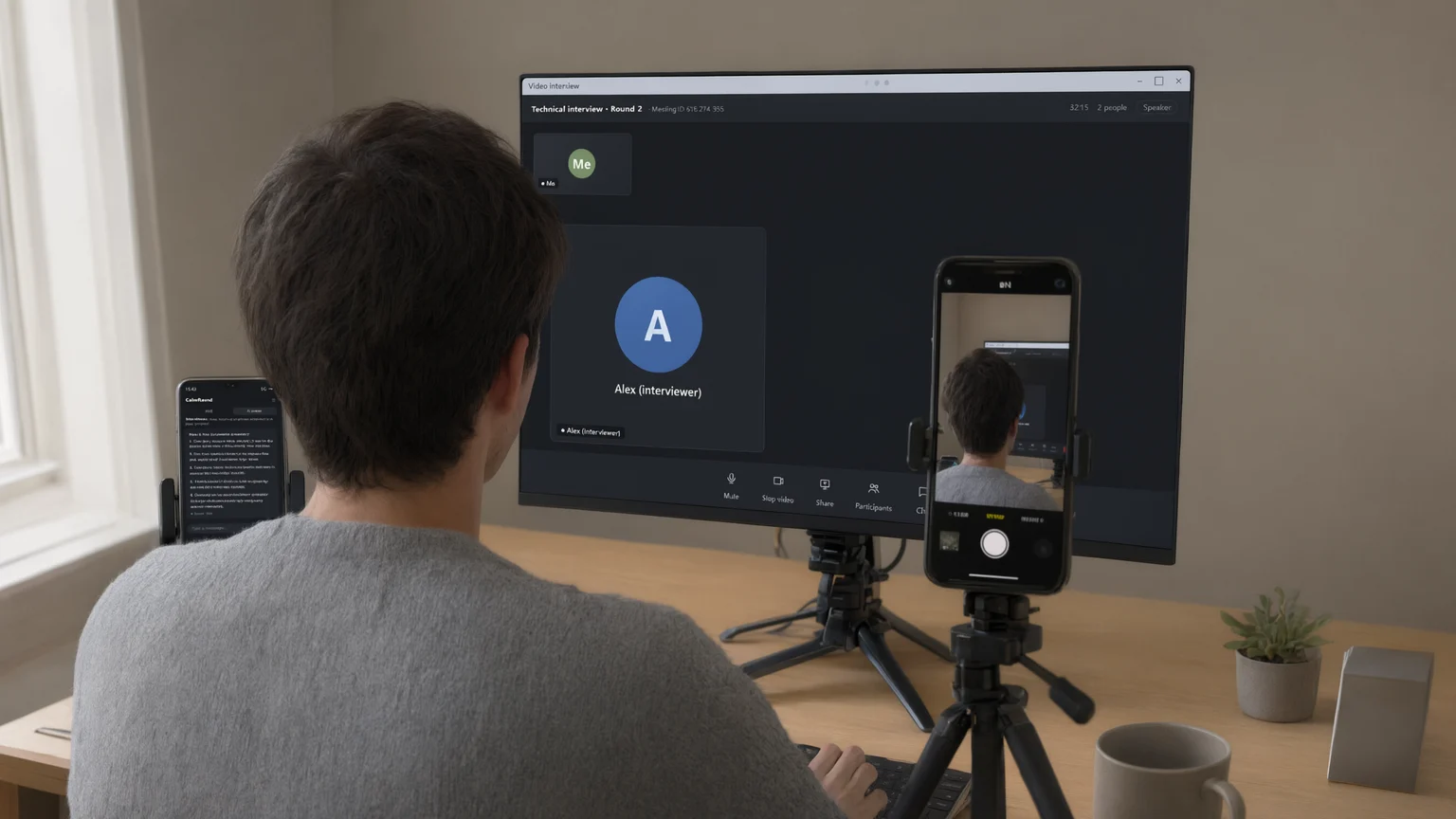
Never put the phone in the middle of the desk or in front of the keyboard. That's exactly where the second camera looks. Place it, then record 10 seconds to confirm.
Check it with a 10-second replay
- Set the camera as the interviewer asks and record 10 seconds: your back (or side profile), hands, keyboard and the computer screen all in frame.
- Pass only if the answer text is unreadable in the replay. If it's readable, lower the text further or move the phone out of view.
Trust the recording, not the preview. Auto-exposure can sharpen faint text; watch the recorded clip.
Online test: listen with headphones
- Choose Online test, turn on Read test answers aloud automatically and click Preview to check your headphones.
- After the pre-check the main window tucks away. Press F5 for a question, F4 for coding.
Hiding and headphones don't replace the test platform's proctoring rules. Rehearse once with your real setup.
Common problems
Still readable at 10% opacity
Switch to Option B: put the phone beside or behind the monitor, out of the camera's view.
The second camera must see the screen — where do answers go?
Use Option A with a narrow window at the screen edge and 10% opacity. If the replay is still readable, Option B is the only reliable setup.
Where exactly should the phone go?
Beside or behind the monitor, or at a desk corner — screen toward you. Not in the middle of the desk or in front of the keyboard. Record 10 seconds to confirm.
The QR code doesn't work
Try another browser; if it still fails, click Local network backup, put both devices on the same Wi-Fi and scan the network card codes.
Nothing matches. Try another word, or send diagnostics to support.