Fusion mode overlay
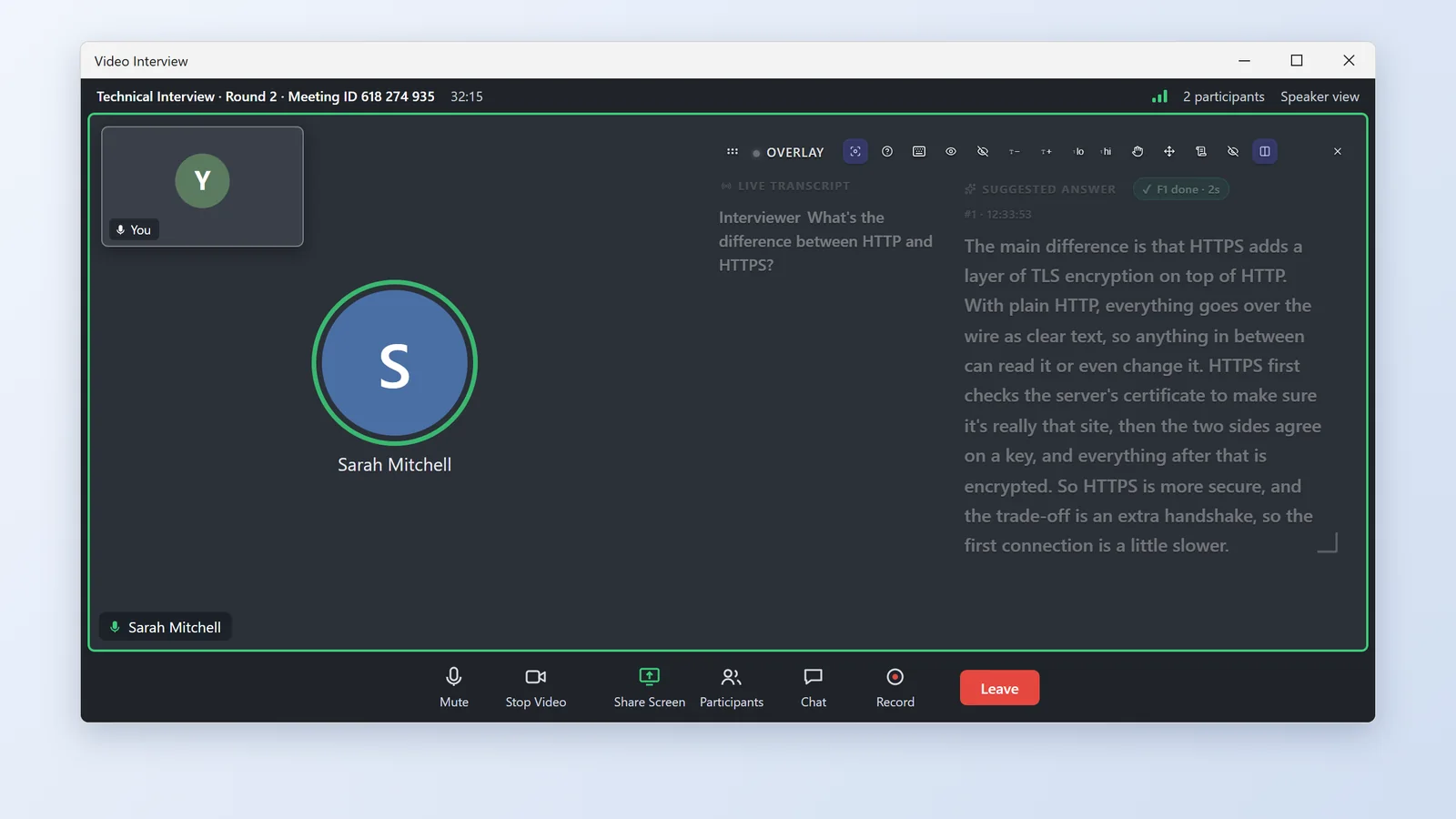
- Under Settings → General → Overlay, set Visual mode to Fusion mode.
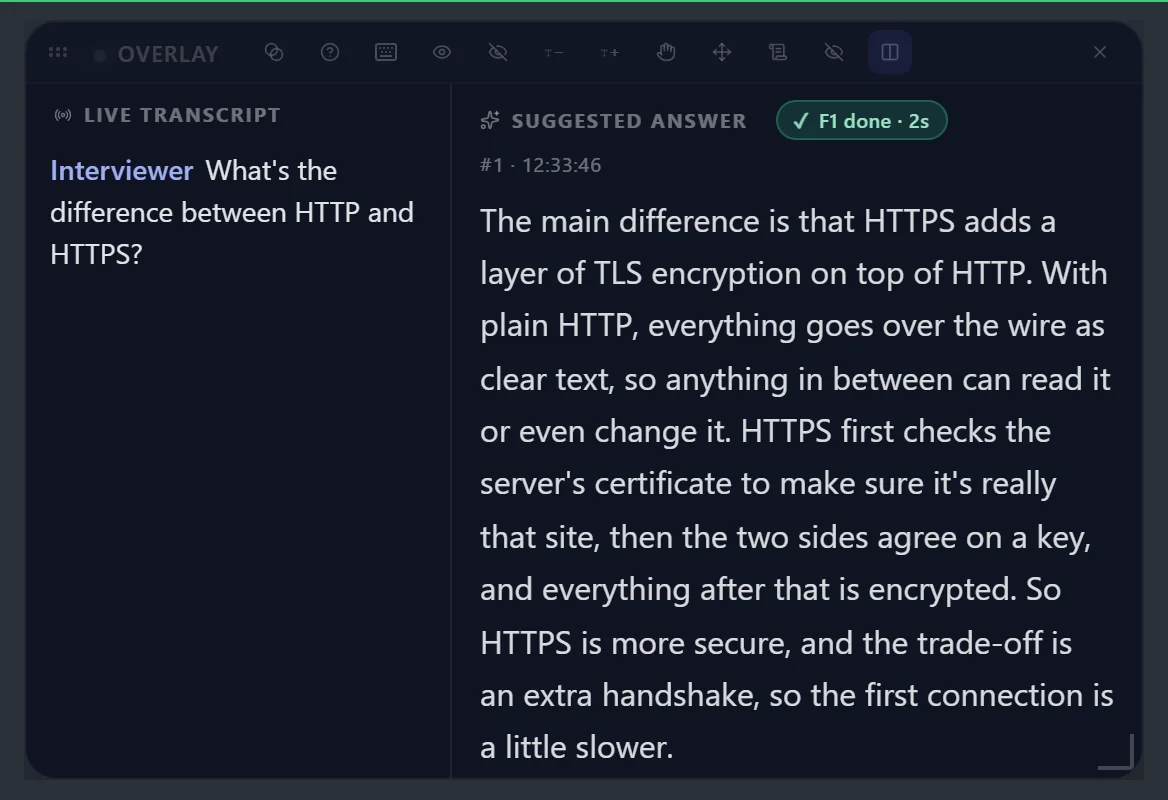
- Use the eye button or Ctrl+Shift+, to make the text as faint as you can still read.
- Keep the window narrow and just below your webcam.
CalmRound listens to the interview and shows a suggested answer built from the resume and notes you add. For your first run, do these 3 steps and leave everything else on the defaults.
Upload your resume and the job description under Resume & materials. How to prepare →
Video interview for a call on this computer, Speaker mode for a phone on speaker. After you start, the overlay opens by itself (not in Speaker mode); Ctrl+Shift+Space hides it and brings it back.
Say the suggested answer.
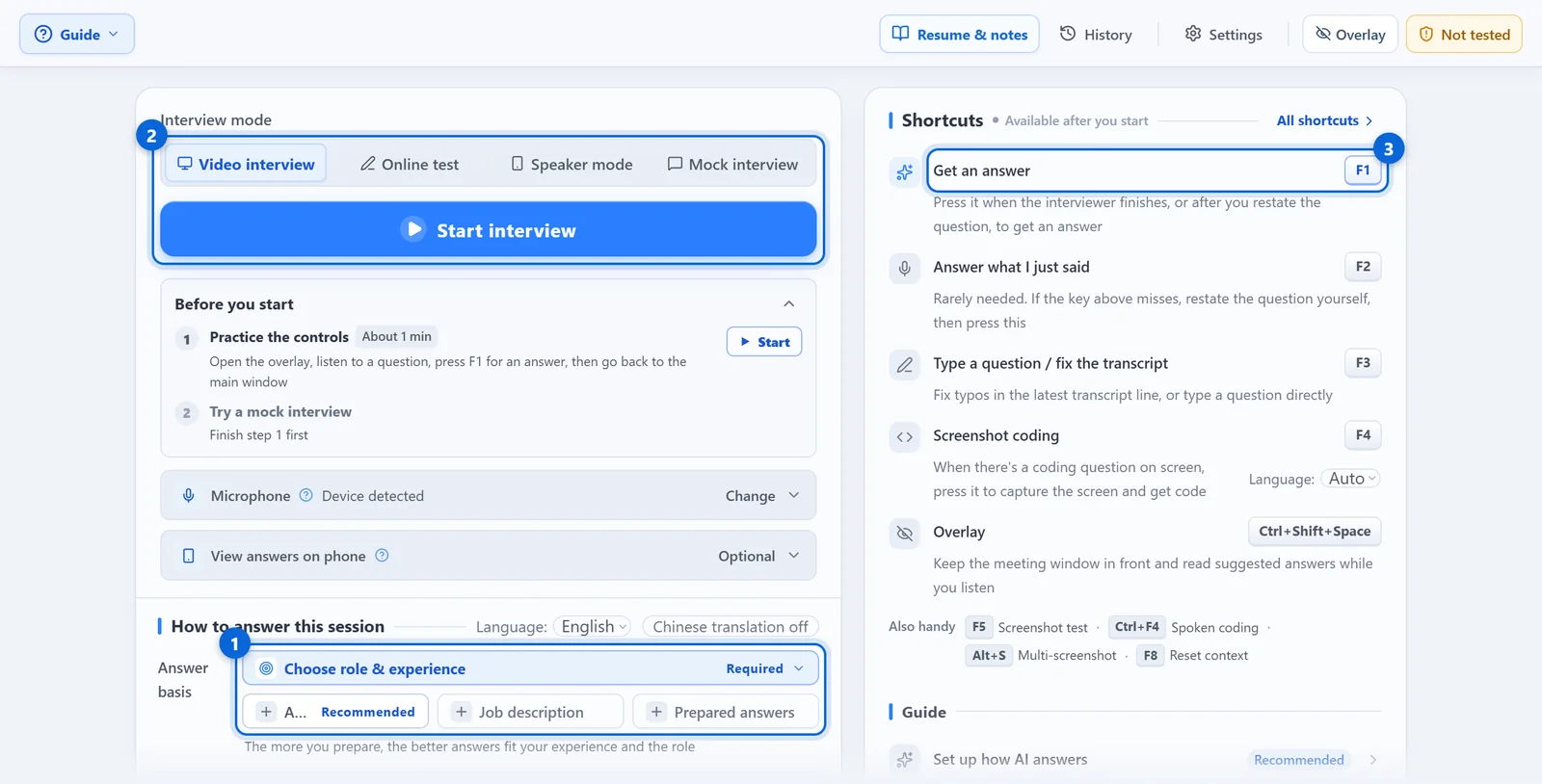
Do a full mock interview first, so the real one isn't your first tryBefore the real thing, run the checklistForgot a key? Press ?
What kind of interview is it? Jump straight there
An answer can only use facts that are in your materials; anything missing, the AI has to guess. Prepare them in this order.
Add your resume and the job description under Resume & materials → Background materials. Files must be PDF, DOCX, TXT or MD:
Click Start organizing to turn your resume, project notes and past questions into Q&A. Check each entry and delete anything that didn't happen, then click Add to knowledge base.
Put what you want to say your own way, like your intro or why you're leaving, into Prepared answers. Only entries you wrote, or edited after organizing, count. To have them used word for word, see Answer settings.
Open Guide and click Test how answers come out. Read one real question aloud and check the answer sounds like you.
Company, role, dates and the part you owned. "Participated" isn't enough; say what you did.
What the project did, what you changed and the result. Use numbers where you have them; otherwise describe the before and after.
Why you're leaving, salary expectation, notice period, and the locations or travel you can accept.
Degrees, majors, certificates and language levels. For anything with a validity period, include the dates.
Don't repeat what's already on your resume. Anything missing goes into background notes or the relevant Q&A. If two places disagree, the AI picks one.
The hardest backend problems I run into usually come down to keeping data consistent across multiple services when things fail in the middle. My approach is to avoid distributed transactions entirely…
The hardest one was migrating our orders table from a single MySQL instance to a sharded setup. That table had grown to about 600 million rows. I owned the migration plan and the execution… Order query p99 dropped from 480 milliseconds to 70 milliseconds. Schema changes went from a three-hour window to under ten minutes.
The demo uses a fictional person's materials. Both are real CalmRound answers, shortened.
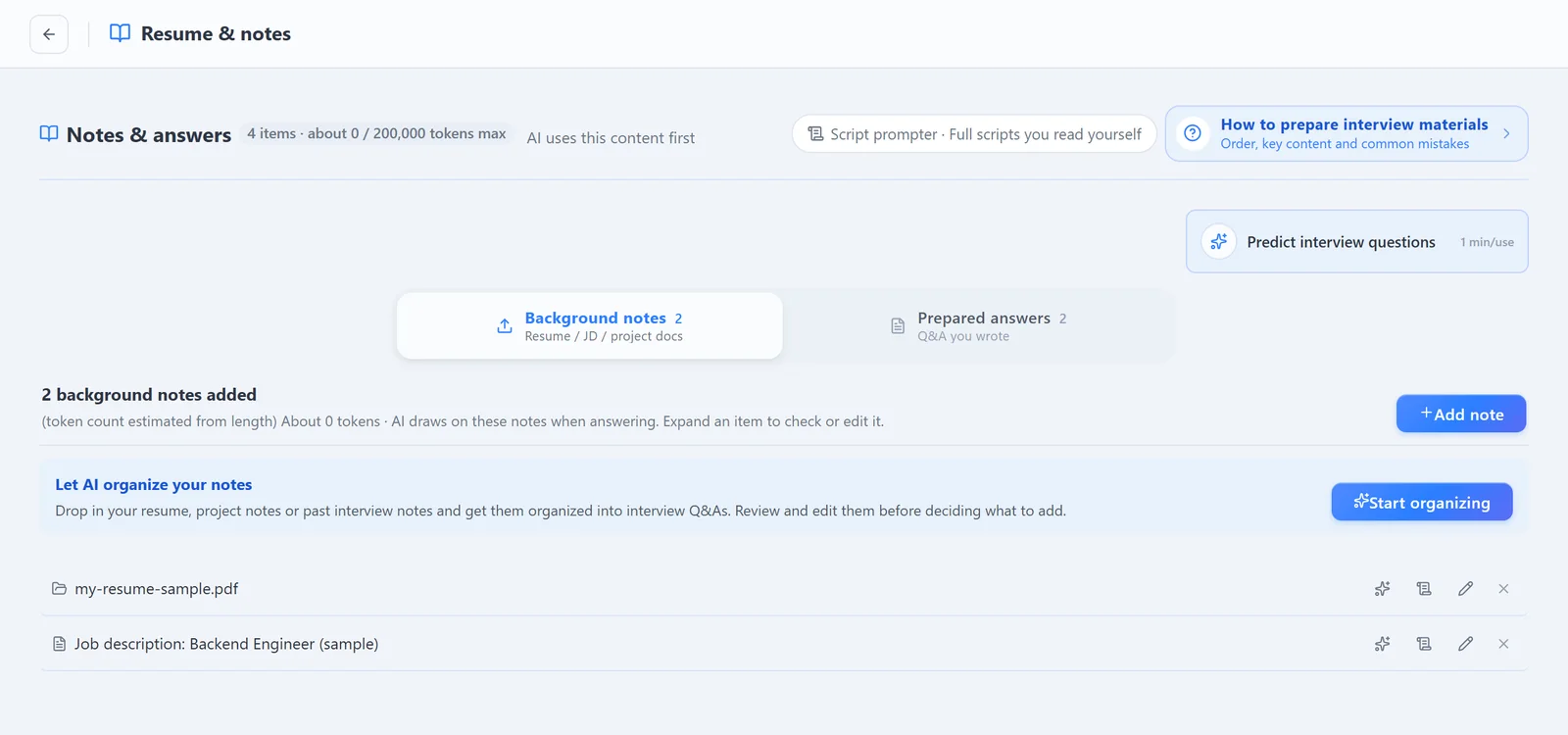
Make one set per role at the top of Resume & materials, and switch to this interview's set first.
Your full text, shown as written with no AI involved. See Using the script prompter below.
Keep a copy: click Export materials at the top of Resume & materials and choose a folder. Every set is saved as plain text — Q&A, background notes and scripts. Nothing is uploaded, and export pauses while an interview is running.
All under Settings → AI answer settings, and changes save automatically. Most answer problems end here.
| What you want | Setting | What to do |
|---|---|---|
| No key presses | When should answers be generated? | Choose Auto answer. If the interviewer pauses a lot, raise the wait to 2–3 seconds. Speaker mode needs My voice recorded first. |
| Keywords only | How should answers be shown? | Choose Talking points. |
| Prepared answers kept word for word | How should the AI use your prepared materials? | The default, Flexible (recommended), reworks a prepared answer to fit the question and its follow-ups. Choose Prepared answer first to keep your wording. |
| Tests: fast on easy questions, careful on hard ones | AI thinking depth | Pick Fast, Balanced or Deep. Coding starts on Deep and tests on Balanced; Fast answers easy questions quickest. |
| Answers sometimes start slowly | Dual-engine boost | Before you start, turn on the switch below Start interview: two AI routes answer at once, and if the main one stalls, the other shows its answer first. It stays as set for the whole interview. |
Two people can answer the same question differently. The recommended settings already handle spoken style, answer pacing and terminology; you only add your own preferences. Interview answers, coding screenshots and test screenshots are saved separately.
| Tier | Who it's for | What happens |
|---|---|---|
| Use recommended settings | First time, or you'd rather not tweak | Nothing to fill in. Improves automatically with app updates, and your materials still feed every answer. |
| Adjust recommended settings | Most people who want a small change | Your preferences are added on top of the recommended settings and still get updates. One click adds a common preference. |
| Custom prompt | You know prompts and already have wording you like | Replaces the recommended prompt. It no longer updates when you change role or resume, or when the app improves; answer format, knowledge base mode and code safety rules are still added by the system. |
Short answers, conclusion first · Final round, stay composed · Skip age, education or past employers.
Core function only · Comment the key steps · Explain the approach in more detail.
Expand short answers as needed · One line of reasoning for objective questions · Show steps for calculations.
Spend 5 minutes before the real thing and go through each item.
| Check | Where | Done when |
|---|---|---|
| Materials in place | Resume & materials at the top | Your latest resume and this job's description are in, and this interview's set is selected. |
| Practiced once | See Which practice first | First time? At least finish Practice the controls. |
| Names heard right | Settings → Role & keywords | Company, project and tech names are added. They apply from your next session. |
| Screen shares don't show CalmRound | Settings → Stealth self-check | All checks pass. Run it again after a system update. How to run it → |
| Second camera (if you have one) | See Second camera | You've filmed one test run as that section describes. |
| Signed in only here | A dialog when CalmRound opens | No Account signed in on another computer dialog appears. If it does, click Continue on this computer; the other computer is signed out. |
| Practice | Where | What it checks |
|---|---|---|
| Practice the controls | Settings → Interview prep | The keys. A question plays, you press F1 and an answer appears; then press Ctrl+Shift+Space to go back to the main window. It only counts as done after that last step. |
| Test how answers come out | Guide → Test how answers come out | Whether answers use your own experience. Say a question you'll really get. |
| Mock interview | Choose Mock interview on the main window | A full round with an AI interviewer: real audio, real answers and the overlay, as in a real interview. See Mock interview. |
| Stealth self-check | Settings → Stealth self-check | That screen shares don't show CalmRound. Run it again after a system update. How to run it → |
Pick today's scenario, follow the steps, then check Done right.
Zoom, Teams, Meet or any call running on this computer.
Done right: the transcript moves on the left and an answer appears on the right within seconds of F1. No transcript? See No interviewer audio.
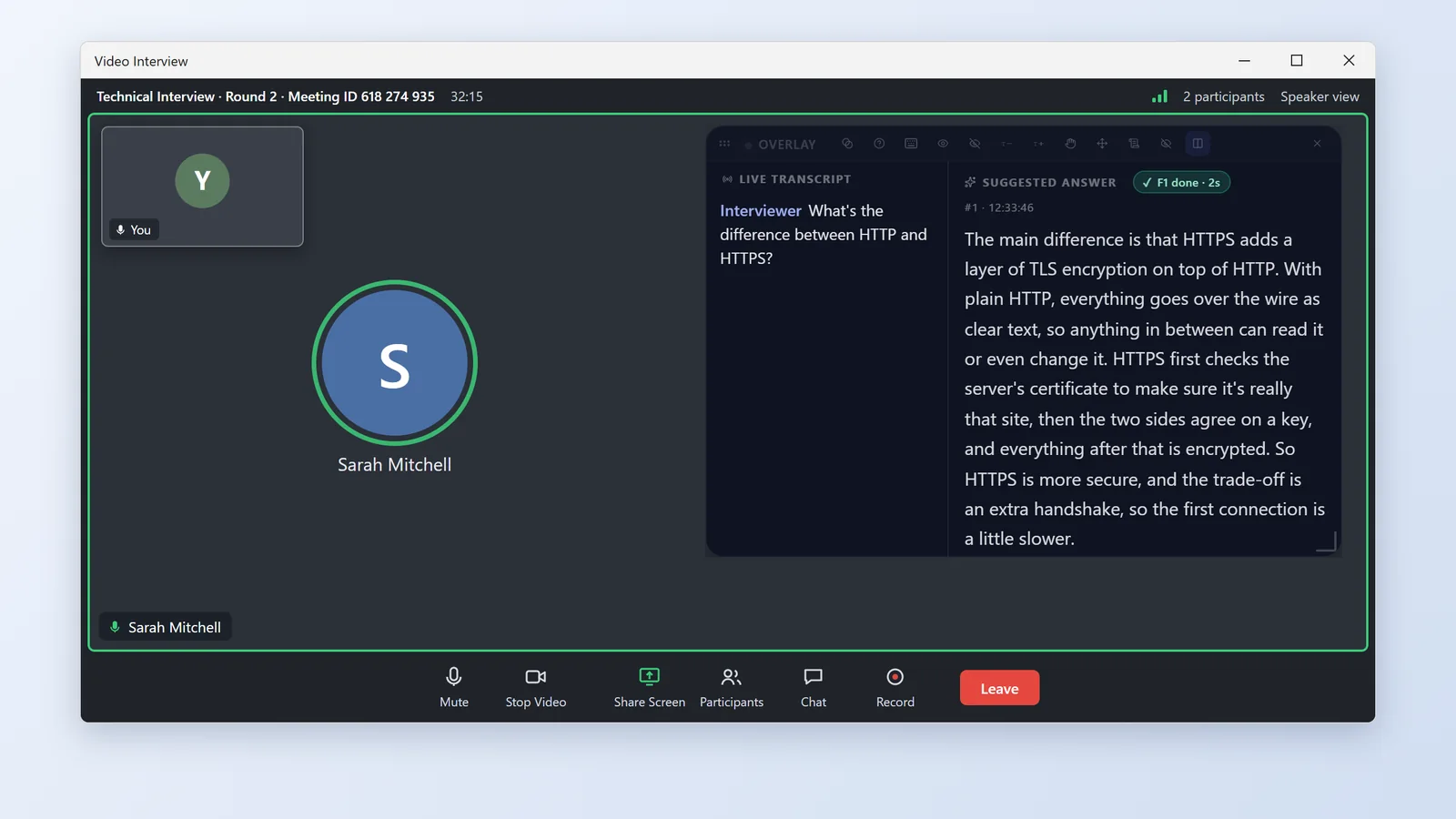
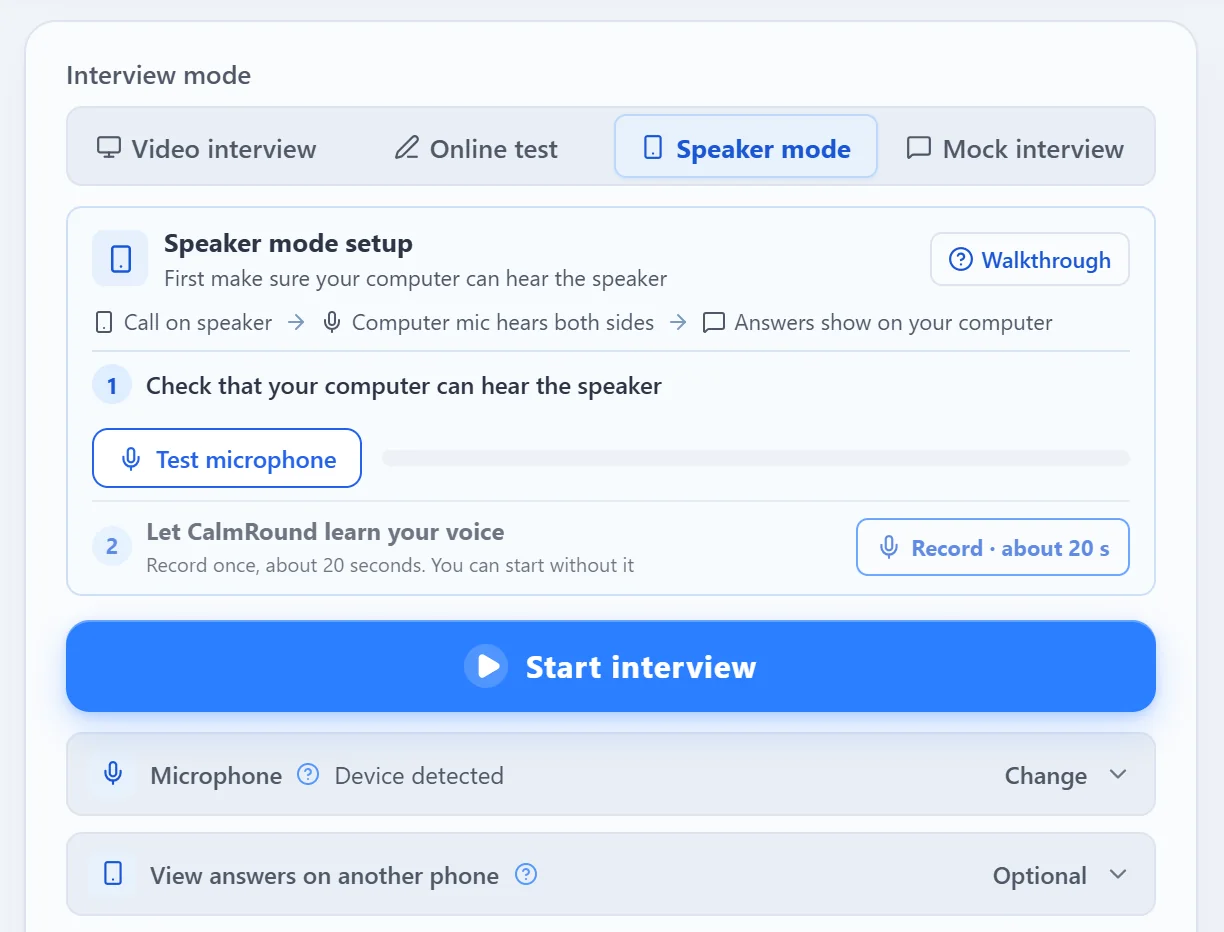
The call runs on your phone or another device. If the meeting is open on your phone, use this mode. Your computer only listens and shows answers.
Done right: the transcript moves as soon as the interviewer speaks, and F1 answers the question they just asked. Answers stay on the main window; press Ctrl+Shift+Space if you want the overlay.
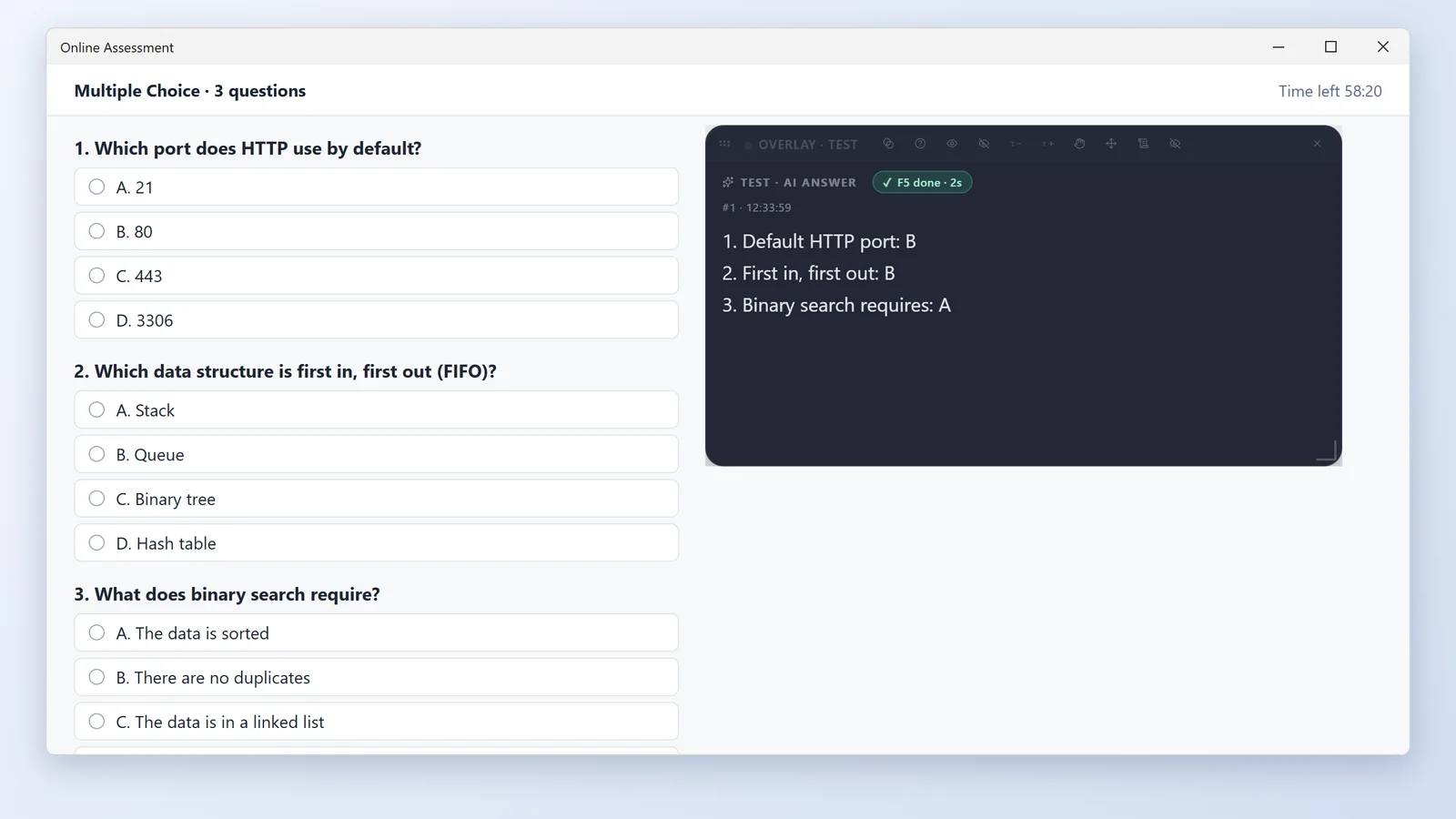
Multiple-choice, true/false, fill-in, short-answer and coding questions in a browser or test app.
Before the real test, try CalmRound on the platform's practice test: check whether a full-screen F5 capture gets correct answers or you need to frame the question with Set capture area first; some platforms block shortcuts or screenshots, so find out early, not mid-test.
Done right: after F5, the overlay shows the question number, answer and explanation.
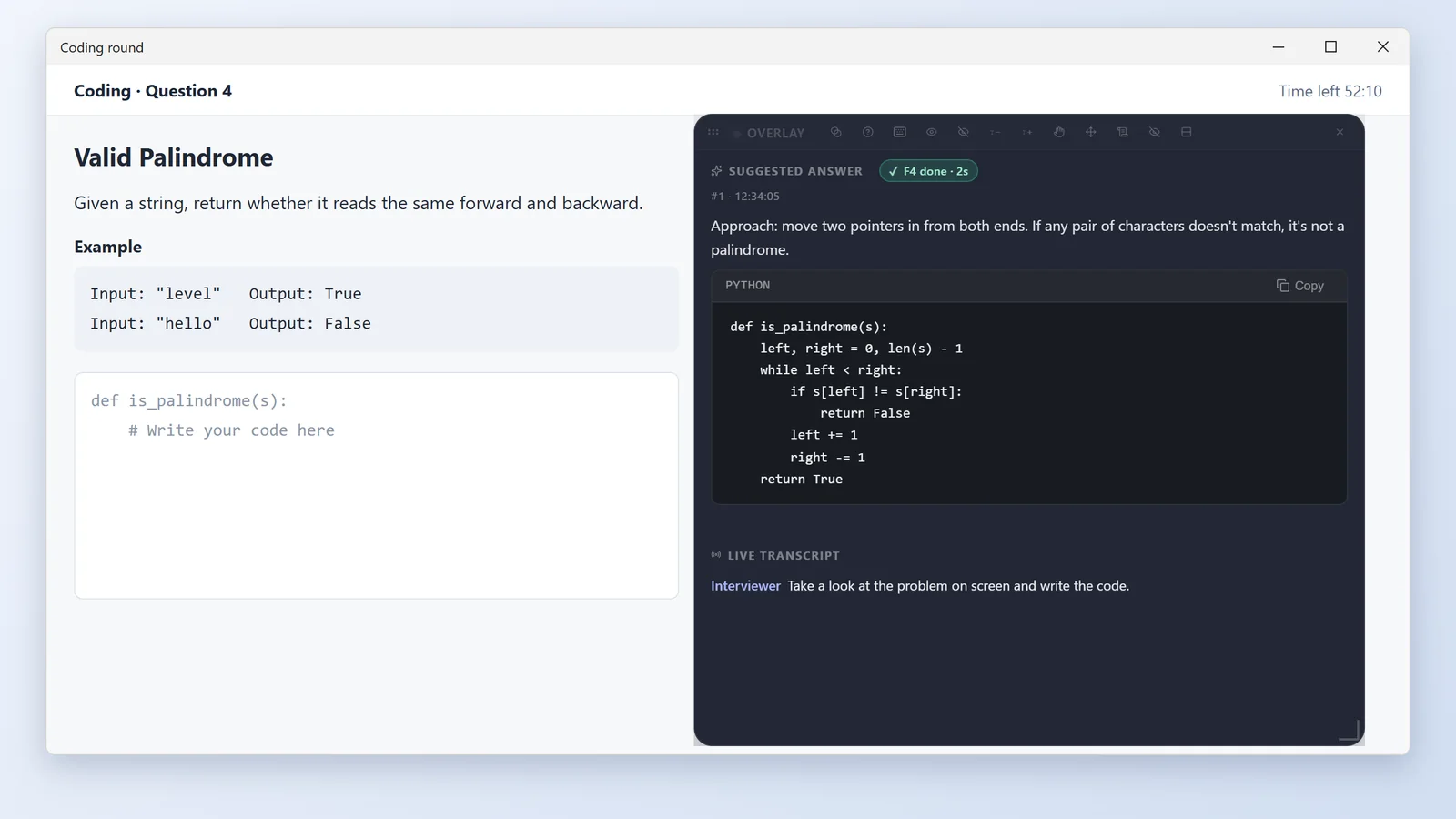
You're asked to write code during the interview, with the problem on screen or only read aloud.
Done right: F1 talks about the last version the app gave you. Don't press F8 until the problem is done; it clears this problem.
The interview isn't in English, or it switches between two languages.
Done right: the transcript and answers are in the interview's language.
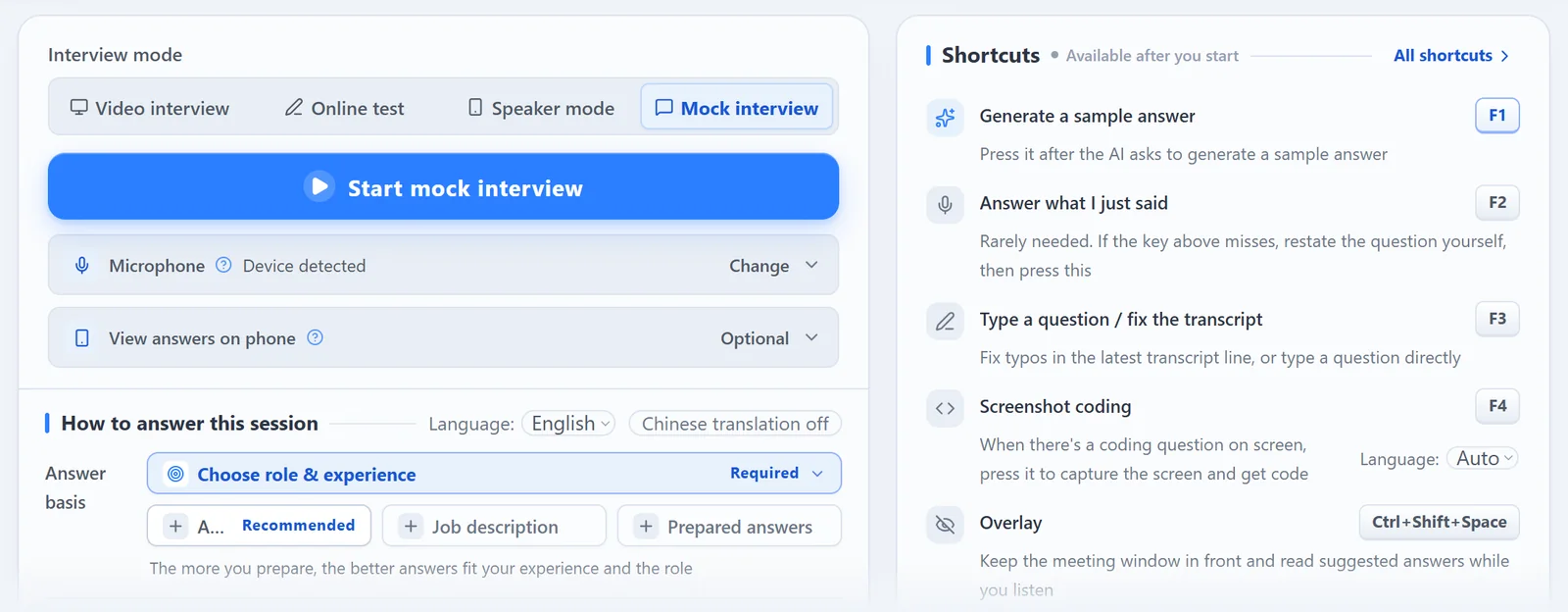
Practice before the real thing: an AI interviewer asks questions and you answer out loud.
Done right: after one round you get a report and know which questions need better materials.
Fix the moment with a key; if the same problem keeps coming back, change your materials or settings.
| What happened | Do this |
|---|---|
| A misheard word sent the answer off track | Press F3 and fix the word; CalmRound answers again. |
| The question wasn't picked up | Repeat the question aloud yourself, then press F2. |
| You want different wording | Press Ctrl+F1 (Mac: Option+W) to try another. |
| The answer isn't about your experience | After the interview, add that experience to your resume or to Prepared answers. |
| A whole new topic | Press F8 to clear the context; not during follow-ups on the same question. |
The fix keys only get you through this question. If the same thing keeps happening, change one place below and check it with Test how answers come out.
| Symptom | Change first | What to do |
|---|---|---|
| The answer is empty or says you have no relevant experience | Materials | Add that experience to your resume or knowledge base: what you did and how it turned out. |
| The answer sounds like someone else, or the numbers are wrong | Materials | Delete outdated resumes and conflicting old Q&A; rewrite prepared answers in your own words. |
| Too long, no clear point | Prompt | Choose Talking points, or add "Short answers, conclusion first" under answer preferences. |
| The wording doesn't sound like you | Prompt | Add one habit of yours, such as "Use plain words, the way I normally speak." |
| Company, project or tech names keep getting misheard | Keywords | Add them under Settings → Role & keywords; they apply from your next session. |
| A prepared answer gets rewritten | How materials are used | Choose Prepared answer first. The default, Flexible (recommended), reworks prepared answers to fit the question. |
| Follow-up questions go unanswered | Materials | Add the trade-offs, hard parts and numbers for each project, not just the result. |
Pick one of two setups, then film a test run to check.
Placement comes first. Point the lens at you so your face, hands and desk are in frame. Keep the answer screen out of the replay — outside the frame, behind the monitor or your body, or too far to read. The camera stays where the interviewer asked; move the screen, not the camera. Full second-camera guide →

Only have a phone? The phone cannot hear the call while the meeting app is open, so the listening and answering still happen on a computer. If the meeting runs on your phone, install the CalmRound Android app: put the phone on speaker next to the computer, choose Speaker mode there, and the app keeps the answers floating over the meeting. Download for your computer →
Always film a test run. Film 10 seconds with another phone from the interviewer's angle: your face and hands clear, the answer text not.
Every step with screenshots: Second camera setup guide.
Using proctoring or monitoring software? CalmRound isn't intended for that setting — our Terms prohibit use in proctored exams and wherever outside help is disallowed.
The overlay opens by itself when an interview starts, and Ctrl+Shift+Space hides it or brings it back. For a normal video call, change nothing.
The main window, overlay and answers are designed to stay out of screen shares, recordings and screenshots on Windows and macOS.
The overlay reminds you when about six minutes of interview time are left, and again at one minute. Click Top up in the overlay, pay, and it brings you back to the interview.
Change it under Settings → General → Overlay; the script prompter changes with it. Focus mode offers White, Cream and Light gray. Fusion mode offers White text and Dark text.
Done right: on the page you'll interview on, you can read the answer at a glance.
Stealth needs no setup; the self-check confirms it really works on this computer. Only the desktop app has stealth.
Done right: all three checks pass. Before the real interview, share a blank desktop once in the call to confirm.
Only when you need them
Under Settings → General → Deep stealth, pick one of three levels: Off, Hide the taskbar icon (on a Mac, Hide the Dock icon) or Deep disguise (process identity). With the icon hidden, get the main window back like this:
On Windows and Mac (not in the stealth build), Deep disguise (process identity) restarts CalmRound once under the name “Print Workflow Service” with a printer icon, so Task Manager, the desktop and the Start menu no longer show CalmRound; on Windows its shortcut is named “Print Workflow Host”. The taskbar icon is hidden too. You can't switch it during an interview; choosing Off restarts once more and brings the CalmRound name back.
Clicking or dragging the overlay doesn't pull focus from your call, test page or IDE. It turns on by itself; its status is under Settings → General → Overlay protection. macOS doesn't support this.
Overlay gone or can't be clicked? See Overlay can't be clicked or has disappeared.
Spend 5 minutes reviewing so the next one goes better.
Records save on this computer automatically. To export them to another folder, use Settings → General → Interview records.
Learn these 4 first. When to press them: see Step by step.
On a Mac: the F keys are the same, but on a Mac laptop F1–F8 need Fn unless you turned off Fn mode (the Mac video starts with it). In combinations, Ctrl is Control (⌃), Alt is Option (⌥), and the script keys use Command (⌘).
| Windows | Mac | What it does |
|---|---|---|
| F2 | F2 | Answer what you just said |
| Ctrl+F1 | Option+W | Try another |
| Ctrl+F4 | Option+C | Spoken coding |
| Alt+S | Option+S | Queue screenshots |
| F8 | F8 | Reset context |
| Windows | Mac | What it does |
|---|---|---|
| Ctrl+Shift+Space | Control+Shift+Space | Open / close the overlay |
| Ctrl+~ | Control+~ | Hide CalmRound instantly; press again to bring it back |
| Ctrl+Shift+G | Control+Shift+G | Half ⇄ full click-through — press again to switch back |
| F6 / F7 | F6 / F7 | Move / scroll with the arrow keys; Esc to exit |
| Ctrl+Shift+, / . | Control+Shift+, / . | Fainter / stronger text |
| Ctrl+Shift+/ | Control+Shift+/ | Reset transparency |
| Windows | Mac | What it does |
|---|---|---|
| Alt+1 to Alt+4 | Option+1 to Option+4 | Scroll answers on your phone |
| Ctrl+Shift+7 | Command+Shift+7 | Show or hide the script |
| Ctrl+Shift+8 / 9 | Command+Shift+8 / 9 | Script page up / down |
| Alt+P | Option+P | Pause or resume script auto-reading |
| Ctrl+Alt+P | Control+Option+P | Script reading speed: slow, standard, fast |
| Ctrl+Alt+N | Control+Option+N | Next script |
These are the defaults; change any key under Settings → Shortcuts.
Laptop F keys only work while you hold Fn? The first time you click Start interview on a laptop or a Mac, the app asks you to press F1 once. When it comes through, the interview starts on its own. You can also click Start anyway. If it finds you need Fn, click Switch to keys without Fn. It changes F1→Alt+A, F2→Alt+D, F3→Alt+Q (Mac: Option+F), F4→Alt+Z, F5→Alt+X, F6→Alt+G (Mac: Option+M), F7→Alt+J, F8→Alt+R, Ctrl+F1→Alt+W and Ctrl+F4→Alt+C. Keys you changed yourself stay as they are. After the switch, the app asks you to press the new key once (for example Alt+A) so you remember it. From then on, press the new key for answers; the hints in the app change to it too. On a Mac, the same check offers Turn off Fn mode instead.
Everything is set up by default. This is where each setting lives, for when you need it.
| Setting | In the app | Change it when |
|---|---|---|
| Interface language | Settings → General → Interface language | You want menus and messages in another of the 9 languages. The interview language is set separately. |
| Answer and recognition language | Settings → General → Answer and recognition language | The interview isn't in English. See Other languages. |
| Show translations alongside foreign-language answers | Settings → General | You want a translation in your display language with each answer. Off by default unless the app is set to Chinese. |
| Role & keywords | Settings → Role & keywords | Company, project or tech names keep getting misheard. |
| AI answer settings | Settings → AI answer settings | See Answer settings and your own prompt. |
| Overlay | Settings → General → Overlay | You want it to stop opening by itself, switch to fusion mode, change the text color, size or layout, or restore its recommended size. See Hard to read? |
| Interview records | Settings → General → Interview records | You want to change where records are saved or export them elsewhere. |
| Question bank | Settings → Question bank | You want to add, bulk-import or delete test questions. |
| Read test answers aloud | Settings → General → Read test answers aloud | You want to hear test answers through headphones. |
| My voice | Settings → My voice | Only for automatic answers in a speaker interview. Record once, about 20 seconds. |
| Shortcuts | Settings → Shortcuts | A key does nothing or clashes with another app. |
| Stealth self-check | Settings → Stealth self-check | Before every real interview. See How to run it. |
| Deep stealth | Settings → General → Deep stealth | You want to hide the icon or disguise CalmRound. First read how to get the window back. |
| Secure share screen | Settings → General → Secure share screen | Mac only: sharing a whole screen still exposes CalmRound. See how to pick the screen. |
The most common problems come first. Search a symptom or key, such as "audio", "F1" or "overlay".
Seeing Only your voice came through, not the interviewer's? That's normal when you're testing on your own: press F2 to answer the question you just said. In a real interview, the call audio isn't reaching this computer; check these three steps.
Still no audio: use Speaker mode for this interview.
First press F1 once without Fn. If nothing happens, try Fn+F1. Before you start an interview, the app asks you to press F1 once and tests this for you. If you need Fn, click Switch to keys without Fn (then press the new key for answers), or lock Fn with Fn+Esc (the lock key on most computers). On a Mac, click Turn off Fn mode. Changed keyboards or the Fn lock? In Settings → Shortcuts, open Shortcuts not responding, or want the defaults back? and click Test again, then press F1 when asked.
The question wasn't heard. Press again once the interviewer finishes, or repeat the question yourself and press F2. No transcript at all? See No interviewer audio.
Click Resume interview first, then press F1.
Misheard word: F3. Not picked up: F2. Different wording: Ctrl+F1. Details in When an answer misses.
Screenshot answers take longer than F1, and hard questions take a while; don't press it again while you wait. One question per screenshot is fastest; every extra screenshot sent together with Alt+S adds time. For easy questions, choose Fast under AI thinking depth.
Only PDF, DOCX, TXT and MD import, and not while an interview is running. For .doc files, slides, images, scans and large files, see step 1 of Prepare your materials. The error message says what to do with that file.
Press Ctrl+~ in case it's hidden, Ctrl+Shift+G to make it clickable, and restore the recommended size under Settings → General → Overlay. In online tests the overlay closes when your phone connects and returns when it disconnects.
Change the text color under Settings → General → Overlay. In fusion mode, pick Dark text on white pages. Still faint? Raise the opacity or the text size. See Hard to read? Change the text color.
Update to the latest version: Settings → About & updates → Check for updates. If it still happens, click Send diagnostics to support on the same page.
Quit CalmRound completely and open it again. If it still fails, download the latest installer from the download page and run it.
Your account was signed in on a second computer, so this one was signed out. Click Continue on this computer to keep using it here; the other computer is signed out.
The meeting app is probably using the wrong camera: see Pick the camera in your meeting app. For other camera problems, see the eye contact guide.
Open the DMG and double-click Install CalmRound. It quits a running copy first, moves the old version to the Trash, installs into Applications and opens the new version. If installation fails, the old version stays. Finish any interview before you start.
You probably turned on Hide the taskbar icon. Press Ctrl+~, or click the printer icon in the system tray (on a Mac, click it and choose Show Main Window). See Getting the window back.
The default, Flexible (recommended), reworks prepared answers to fit the question. To keep your wording, choose Prepared answer first under Settings → AI answer settings. Only Prepared answers you wrote, or AI-organized ones you edited, count.
Too early: raise the wait to 2–3 seconds. Not at all: check that AI answer settings is on Auto answer; Speaker mode needs My voice recorded first; tests don't use auto answer.
F3 works once a video, speaker or mock interview has started, not during a practice run or an online test.
Windows: check the Click-without-focus status under Settings → General → Overlay protection. If it shows a failure, quit CalmRound completely and reopen it. macOS doesn't support this.
Choose Local network backup, put both devices on the same Wi-Fi and scan again.
Check that your system output is the headphones, then click Preview in the test controls; meanwhile read the answers in the overlay.
Check that your text is saved under Resume & materials → Script prompter, then press the script key shown under Settings → Shortcuts.
Before you start, choose Japanese under Settings → General → Answer and recognition language. If English questions come up too, turn on Answer English questions in English below it.
No. CalmRound isn't intended for proctored exams — our Terms prohibit use in proctored exams and wherever outside help is disallowed.
Nothing matches. Try another word.
Still stuck? Go to Settings → About & updates and click Send diagnostics to support, or email [email protected] with your operating system.